Open port 80 on Windows
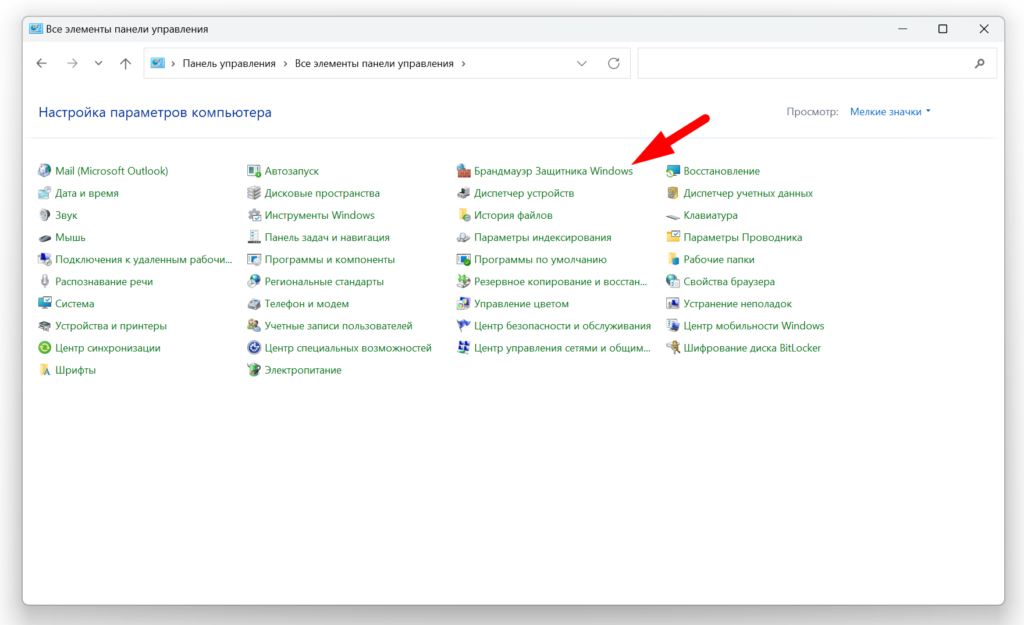
Go to the Control Panel and launch “Windows Firewall”
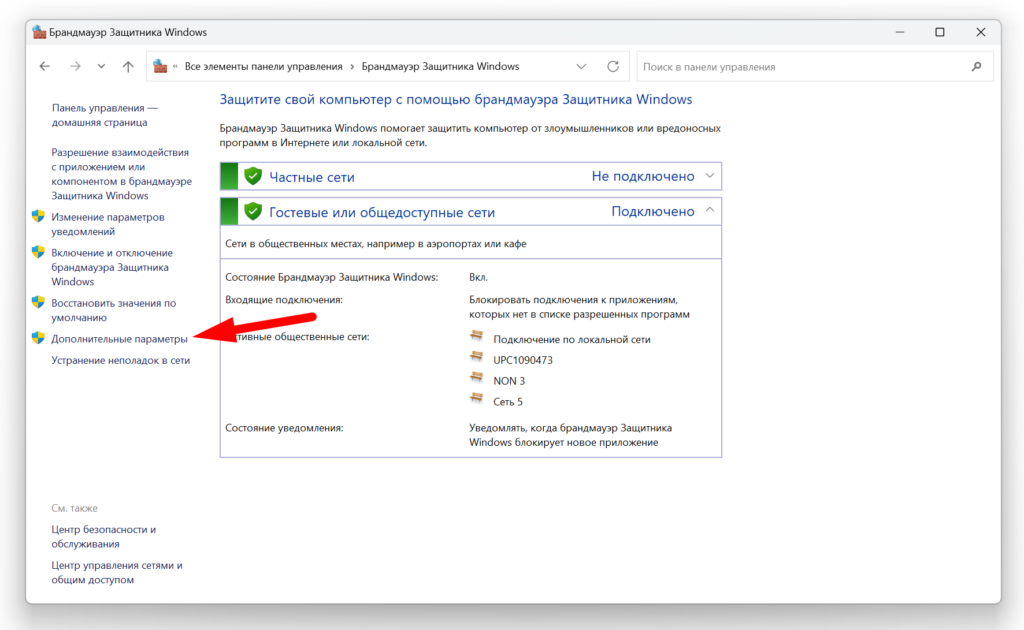
Go to “Advanced Settings”
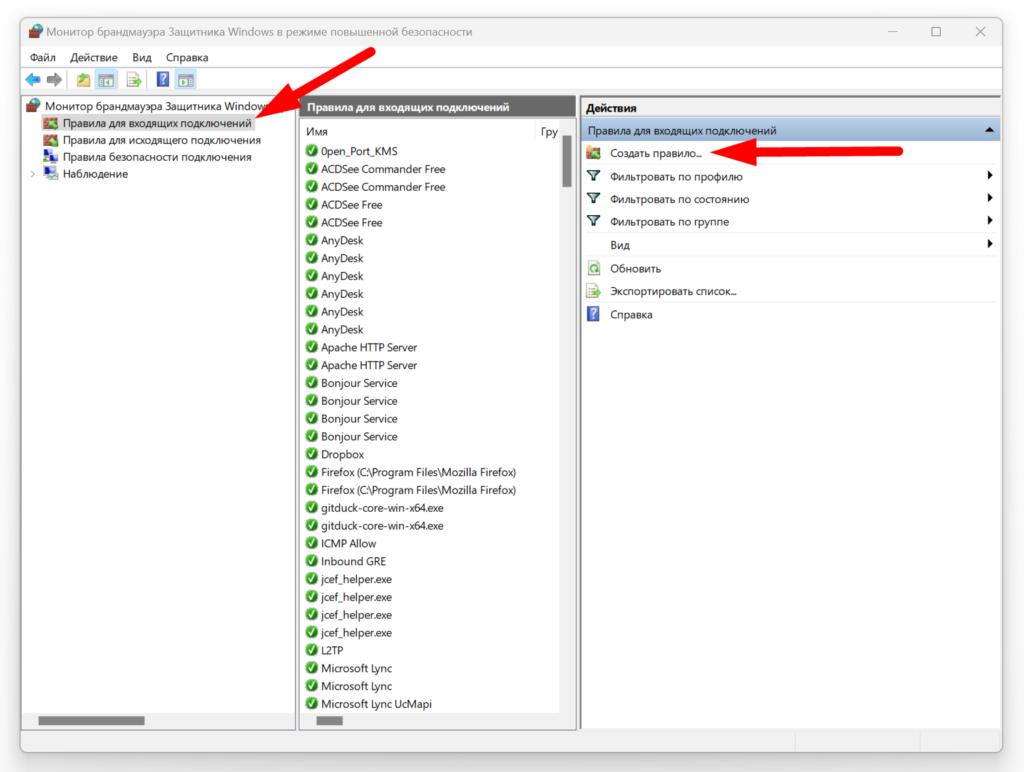
Select “Inbound Rules” in the left pane
Select “New Rule” in the right pane
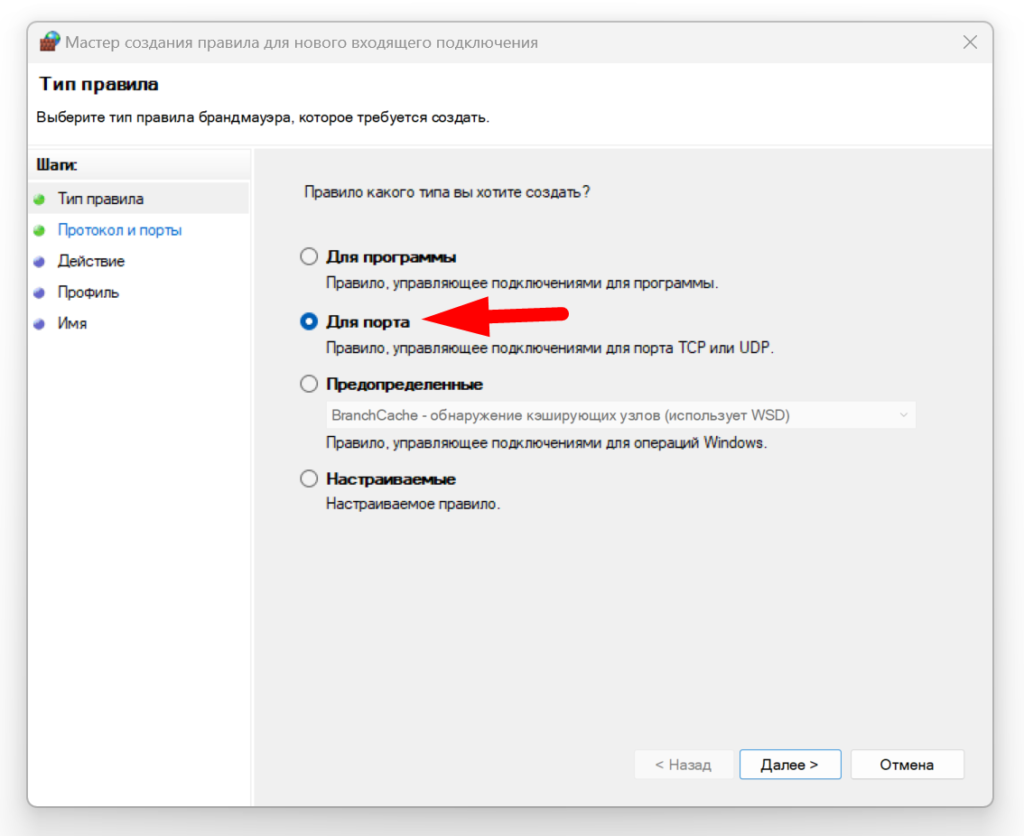
In the New Inbound Rule Wizard, select “Port” as Rule Type, then click on “Next”
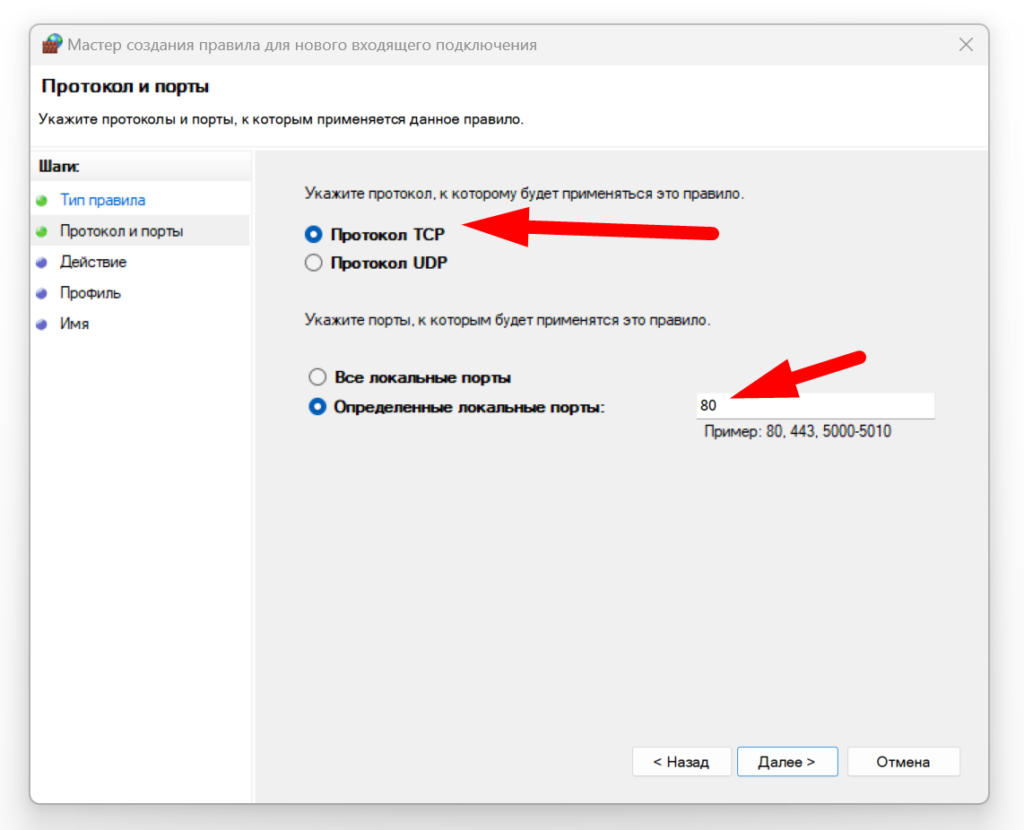
Select “TCP and put “80” (and any other ports you want to open) in “Specific local ports”, then click on “Next”
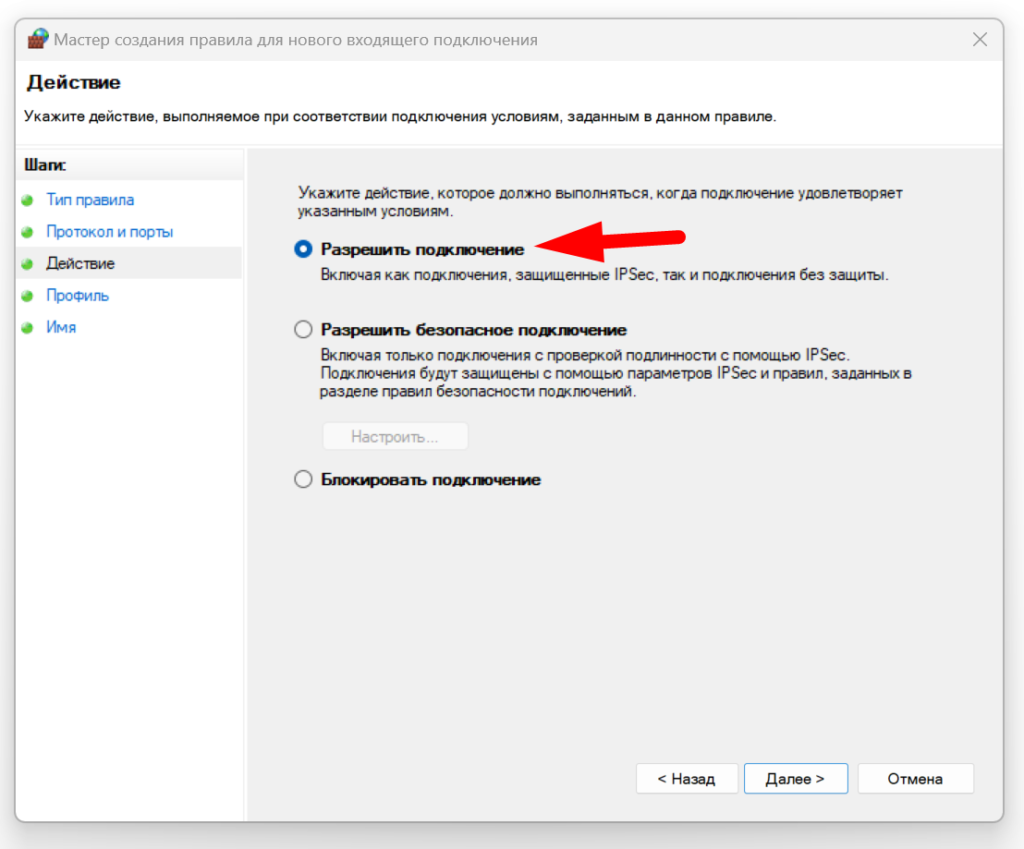
Select “Allow the connection”, then click on “Next”
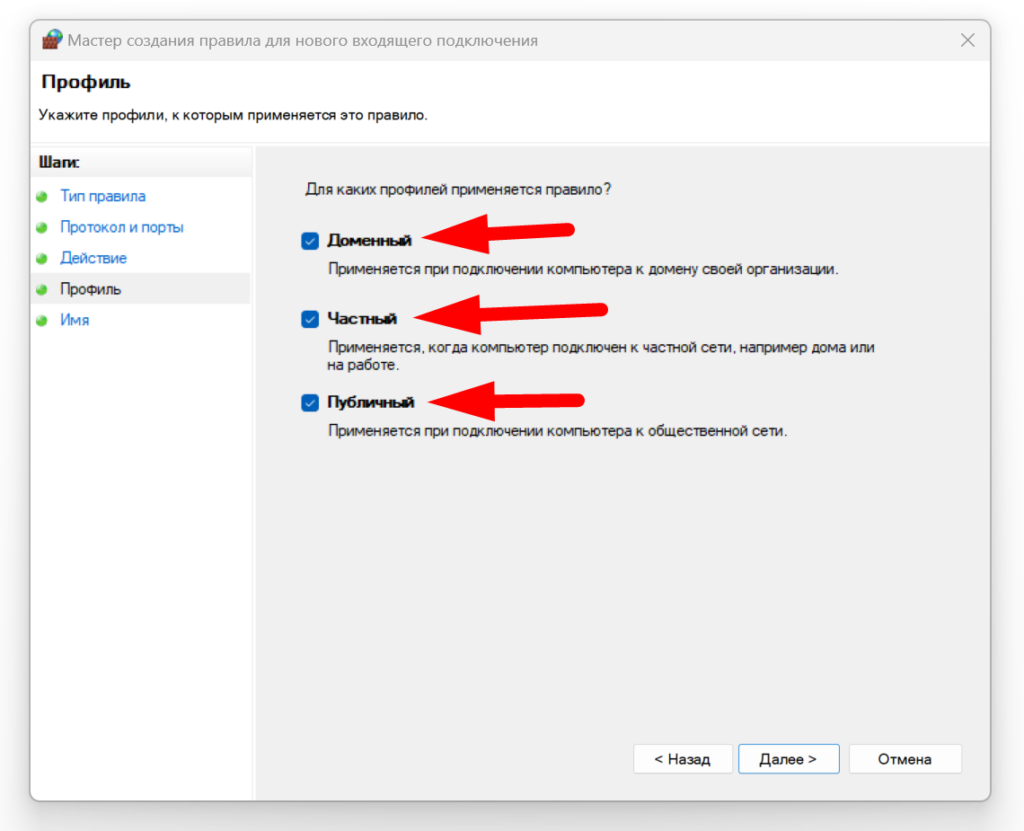
Select the network location where the rule should apply (select them all if you’re not sure), then click on “Next”
Give a name and an optional description
